Fast notebooks are laptops that pair a modern processor, at least 16 GB of RAM and a solid-state drive with efficient cooling, so they stay responsive under real office workloads rather than only in short benchmark bursts. For most Philippine small and mid-sized businesses, the fastest choice is not the most expensive model but the one whose specifications match the daily workload of the employee using it.
This guide explains which components determine speed, how much memory and storage to specify, how battery life and heat affect performance, and how to decide between buying and leasing.
What Makes Fast Notebooks Fast?
A notebook feels fast when five components work together: the processor, memory, storage, cooling and software configuration. A weakness in any one of them limits the others, which is why a laptop with a high-end chip can still feel sluggish.
- Processor: Handles calculation. Newer chips combine performance cores for heavy tasks with efficiency cores for background work.
- Memory (RAM): Holds the applications and files in use. Too little forces the system to swap data to storage, which slows everything.
- Storage: An NVMe solid-state drive loads the operating system and applications far faster than older drive types.
- Cooling and power limits: Determine how long the processor can run at full speed before it throttles.
- Software and security tools: Poorly configured antivirus, startup programs and bloatware can erase the gains of good hardware.
Speed also has two meanings in practice. Peak speed is how fast a laptop completes a short task, such as opening a large spreadsheet. Sustained speed is how well it performs over a full workday of video calls, browser tabs and accounting software. Business buyers should weigh sustained speed more heavily.
Choosing the Right Processor
The right processor depends on the job: efficient mid-range chips suit office and administrative work, while higher-tier chips are justified only for design, video, engineering or data-heavy roles.
Recent processor families from Intel, AMD, Apple and Qualcomm all include dedicated efficiency cores and neural processing units for AI-assisted features. Intel's Core Ultra 200V-series announcement is a useful reference for understanding how newer mobile chips balance power use and performance.
For benchmark context, Tom's Guide reported Geekbench scores of 3,751 single-core and 14,947 multi-core for the 13-inch MacBook Air M4 in its MacBook Air M4 review. Scores like these are best used for comparing models within one test suite, not as a guarantee of how a laptop behaves with your specific software.
A practical way to match processor tier to role:
- Administrative and sales staff: A current-generation mid-range chip is sufficient.
- Finance and operations: A mid-range or upper mid-range chip handles large spreadsheets and several business applications at once.
- Design, video and engineering: An upper-tier chip with a discrete or strong integrated graphics unit.
Buying generation-old stock at a discount can look attractive, but the efficiency gap between generations affects both speed and battery life, so check the model year before purchase.
How Much RAM and Storage Do You Need?
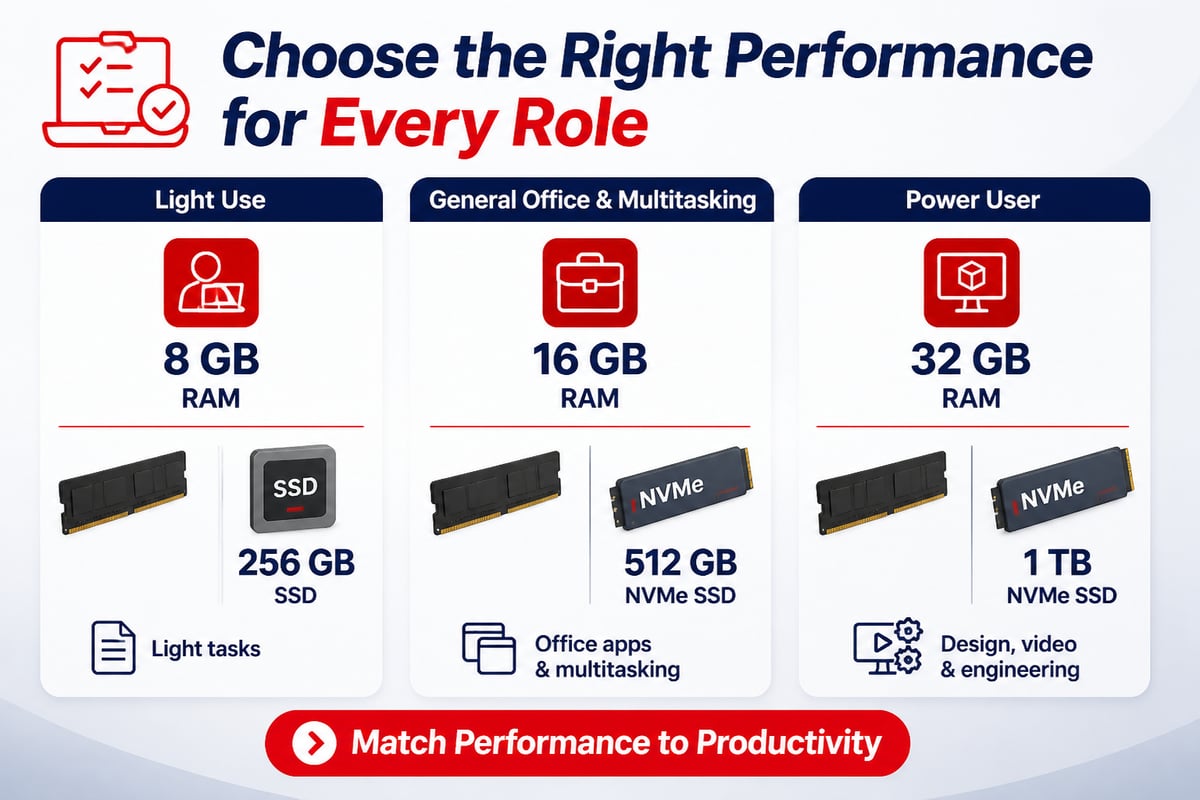
For business use in 2026, 16 GB of RAM and a 512 GB NVMe solid-state drive is the practical baseline, with 8 GB acceptable only for light, single-purpose tasks.
Manufacturer guidance supports this. HP’s laptop buying guide recommends 8 GB as a minimum for smooth everyday performance, 16 GB for multitasking and creative work, and 32 GB for demanding professional workloads. Microsoft’s Surface buying guide gives similar advice, noting that 8 GB suits browsing, streaming and light productivity, while 16 GB or more is better for AI-enhanced workflows and heavy multitasking.
It is worth separating compatibility from comfort. Microsoft’s Windows 11 system requirements list 4 GB of RAM, 64 GB of storage and a 64-bit processor with at least 1 GHz and two cores as the minimum. Those figures only allow the operating system to install. They do not describe a laptop that will feel quick with a browser, messaging apps, a video call and an accounting package running together.
Why storage type matters as much as capacity
An NVMe solid-state drive reduces boot times, application launches and file searches. A larger drive also keeps performance steady, because solid-state drives slow down when nearly full. Specify at least 512 GB for staff who store local files, and consider 1 TB for roles that handle large media or CAD files. Where company data lives on shared cloud storage, a smaller local drive can be enough.
Battery Life, Heat and Sustained Performance
Battery life and heat management determine how long a notebook stays fast away from a desk, so they belong in the speed discussion rather than being treated as separate comfort features.
HP suggests looking for a rating of at least 10 hours if all-day use away from an outlet is a priority, as stated in its buying guide. Independent results vary widely by test method. In Tom's Guide's Wi-Fi web-surfing test at 150 nits, the 13-inch MacBook Air M4 lasted 14 hours and 51 minutes, while PCMag measured 19 hours and 56 minutes for the 2025 model in its own testing. The gap illustrates a useful rule: treat manufacturer battery claims as an upper bound and read the test conditions behind any review figure.
Heat matters for a different reason. Thin fanless designs run silently and last long on battery, but they may reduce processor speed during extended heavy work. Laptops with active cooling hold higher speeds longer, at the cost of fan noise and weight.
Consider these points for Philippine conditions:
- Office air conditioning is often set higher than in temperate countries, and many employees work in warm client sites, cafes or at home, which increases thermal stress.
- Power interruptions are a practical concern in some areas, which makes a battery rated for a full workday more valuable.
- A laptop that throttles in a warm room will feel slower than its specifications suggest.
Fast Notebooks by Use Case
Matching the notebook to the role avoids both underspending, which causes slowdowns and downtime, and overspending on capacity that sits idle.
| Role | Processor tier | RAM | Storage | Priority |
|---|---|---|---|---|
| Admin, reception, sales | Mid-range | 16 GB | 512 GB SSD | Battery life, light weight |
| Finance, accounting | Mid to upper mid-range | 16 GB | 512 GB SSD | Screen size, keyboard |
| Remote and field staff | Efficient mid-range | 16 GB | 512 GB SSD | Battery, connectivity, durability |
| Design, video, engineering | Upper tier with strong graphics | 32 GB | 1 TB SSD | Sustained performance, display |
Screen quality and ports are easy to overlook in a specification sheet but affect daily comfort. A 14-inch display balances portability and usability for most staff, while finance teams working in spreadsheets often prefer 15 or 16 inches. Check that the laptop has the ports your office equipment needs, because dongles add cost and are easily lost.
Why Speed Depends on More Than Hardware
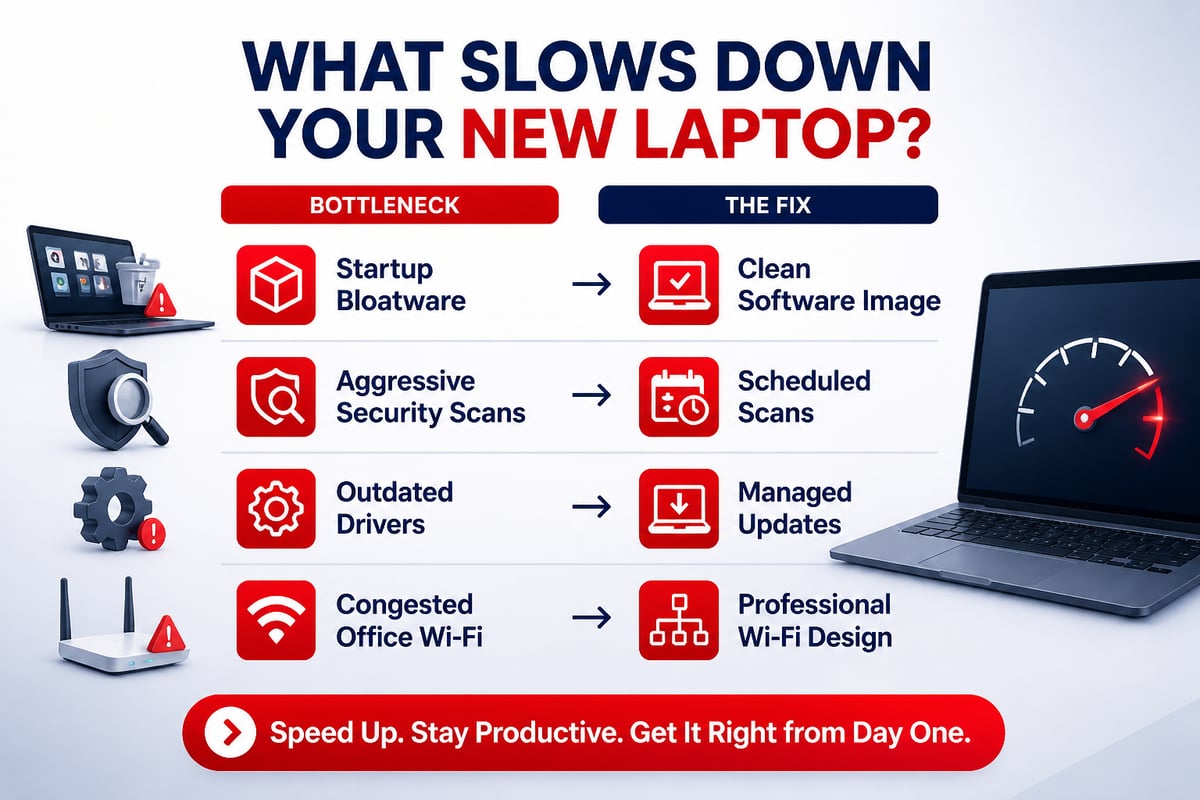
Even well-specified fast notebooks slow down when software, security and network conditions are poorly managed, so a deployment plan matters as much as the purchase.
Common causes of slowdown on new hardware include:
- Preinstalled trial software that runs at startup
- Security tools that scan aggressively during working hours
- Unpatched operating systems and outdated drivers
- Weak office Wi-Fi, which makes a fast laptop feel slow in cloud applications
Network quality deserves particular attention. A notebook that opens files instantly on a local drive can still stall when the office wireless network is congested. Professional wireless design and management, such as the Wi-Fi planning, installation and management REDCHIP IT SOLUTIONS INC. provides for offices, schools and hotels, removes a bottleneck that no laptop upgrade can fix.
Security also affects speed in a less obvious way. A compromised machine runs slowly and puts company data at risk. Managed detection and response, including 24/7 threat monitoring and rapid incident response, lets a business protect its notebooks without building an in-house security team. Pairing new hardware with a clean, standardized software image, scheduled updates and managed security keeps performance consistent across the fleet.
Buying, Leasing or Rent-to-Own: Which Suits a Philippine Business?
For many small and mid-sized businesses in the Philippines, leasing or rent-to-own is the more practical way to get fast notebooks, because it spreads cost over time and removes the burden of repairs, replacement and refresh cycles.
Purchasing outright gives full ownership, but it ties up capital and leaves the business responsible for aging hardware. A laptop that is fast today may feel slow in three years, and replacing a whole fleet at once is a large single expense.
| Option | Upfront cost | Ownership | Best when |
|---|---|---|---|
| Outright purchase | High | Immediate | Cash is available and equipment will be used long term |
| Leasing | Low | Provider retains | You want predictable monthly costs and regular refreshes |
| Rent-to-own | Low | Transfers at end of term | You want to own equipment but spread payments |
Leasing also simplifies planning. A fixed monthly figure is easier to budget than a periodic capital expense, and equipment can be refreshed on a schedule so staff are not stuck with slow machines. Through its computer leasing and rent-to-own options, REDCHIP IT SOLUTIONS INC. offers a route to current hardware without a large upfront outlay.
Businesses that prefer to own can browse the available computer products and match specifications to each role before committing.
Questions to Ask Before You Commit
Before approving any fleet purchase or lease, a short checklist prevents the most common specification mistakes.
- What does each role actually run? List the applications, file sizes and number of simultaneous programs for each group of employees.
- Is the memory upgradeable? Many thin laptops solder RAM to the board, so the amount you buy is the amount you keep.
- What is the realistic battery life? Look for independent test results under conditions close to your use.
- What warranty and on-site support is included? Downtime costs more than the price difference between models.
- How will devices be set up and secured? A standard image, encryption and managed security should be ready on day one.
- What is the replacement plan? Decide when devices will be refreshed so performance does not drift downward.
Teams without an in-house technology department can hand this evaluation to a provider. REDCHIP IT SOLUTIONS INC. combines IT consulting and managed services with firewall and server work, cloud infrastructure and computer retail under one provider, so hardware selection, setup and ongoing support are coordinated rather than split across vendors.
Documentation and administrative overhead can also slow a growing business more than hardware does. Offloading routine tasks to a trained assistant, for example through a virtual assistant service like Elite Concierge, frees staff time so the performance you pay for in hardware translates into output.
Setting Up Fast Notebooks for Lasting Performance
Fast notebooks stay fast when they are configured and maintained deliberately, and a few routine practices extend their useful life considerably.
- Standardize the image: Install only approved software and remove trial applications before handing a device to staff.
- Schedule updates outside working hours: This avoids slowdowns and interruptions during the day.
- Monitor storage and startup items: Review them periodically, since gradual buildup is a common cause of slow machines.
- Use remote support: Quick remote fixes keep small issues from becoming lost workdays.
- Plan refresh cycles: Replace or upgrade on a schedule rather than waiting for failures.
A business presence also benefits from the same attention to speed. If your website or internal tools feel slow, a specialist such as Makeway can help improve digital experiences, which pairs well with an upgraded device fleet.
When these practices are combined with correctly specified hardware, the result is a fleet that performs consistently, costs less to support and keeps employees productive.
Start by listing the applications each role in your business uses daily, then compare that list against the RAM, storage and battery recommendations above to draft a specification for each group. If you would rather have that assessment done for you, REDCHIP IT SOLUTIONS INC. can recommend, deliver, secure and support the right notebooks for your team, whether you choose to lease, rent-to-own or buy. Get a Free Consultation to review your needs and receive a recommendation matched to your budget.