Laptops have become indispensable tools for modern businesses, powering everything from customer relationship management to financial reporting. However, these portable workstations are prone to a range of technical problems that can disrupt productivity and strain IT budgets. Understanding the most common issues with laptop computers and their solutions helps businesses minimize downtime and extend the lifespan of their hardware investments. Whether you're managing a fleet of employee devices or troubleshooting a single critical workstation, recognizing early warning signs and implementing preventive measures can save thousands in replacement costs and lost productivity.
Hardware Failures and Component Problems
Physical components represent the most frequent source of laptop malfunctions. These issues range from minor annoyances to complete system failures that require immediate professional attention.
Power and Battery Issues
Battery degradation stands as one of the most universal issues with laptop systems. After 300-500 charge cycles, lithium-ion batteries lose approximately 20% of their original capacity, leading to shortened runtime and unexpected shutdowns during critical tasks. Businesses often notice employees tethered to power outlets or experiencing sudden power loss during presentations.
Common battery symptoms include:
- Rapid discharge from 100% to critical levels within an hour
- Swelling or physical deformation of the battery compartment
- Failure to charge beyond a certain percentage
- System throttling or reduced performance when unplugged
The U.S. Consumer Product Safety Commission has documented safety concerns related to lithium-ion laptop batteries, including thermal runaway events and recalls affecting millions of units. Businesses should establish battery replacement schedules based on usage patterns rather than waiting for complete failure.
Power delivery problems extend beyond batteries. AC adapters frequently fail at stress points where cables bend repeatedly, and charging ports accumulate debris or suffer from broken solder connections. When a laptop refuses to power on, Apple’s systematic troubleshooting approach demonstrates the methodical testing required to isolate power-related faults.

Storage Drive Degradation
Hard disk drives and solid-state drives eventually fail, threatening critical business data. Mechanical hard drives typically last 3-5 years under normal office conditions, while SSDs can endure longer but face different failure modes. Backblaze’s extensive drive statistics reveal annual failure rates ranging from 0.5% to 2% depending on model and age, meaning in a 100-laptop deployment, several drives will fail each year.
| Storage Issue | HDD Symptoms | SSD Symptoms |
|---|---|---|
| Early Warning | Clicking sounds, slow file access | Read-only mode, slow writes |
| Critical Failure | Complete unresponsiveness | Disappears from system |
| Data Recovery | Often possible | More difficult, expensive |
| Average Lifespan | 3-5 years | 5-7 years |
Investigations into SSD failures have uncovered firmware bugs that can brick drives without warning, emphasizing the importance of regular backups. Businesses should implement automated backup solutions and monitor S.M.A.R.T. data to predict drive failures before they occur.
Memory and Motherboard Complications
RAM failures manifest as application crashes, blue screens, and system instability. Unlike storage, memory typically fails completely rather than gradually, making issues with laptop RAM particularly disruptive. A single faulty memory module in dual-channel configuration can halve system performance or prevent booting entirely.
Motherboard problems represent the most expensive hardware failures. Liquid spills, power surges, and thermal stress can damage circuits beyond economical repair. Symptoms include:
- Intermittent USB port failures
- Display artifacts or complete screen blackouts
- Inability to recognize installed RAM or storage
- Random system freezes regardless of workload
Thermal Management and Overheating
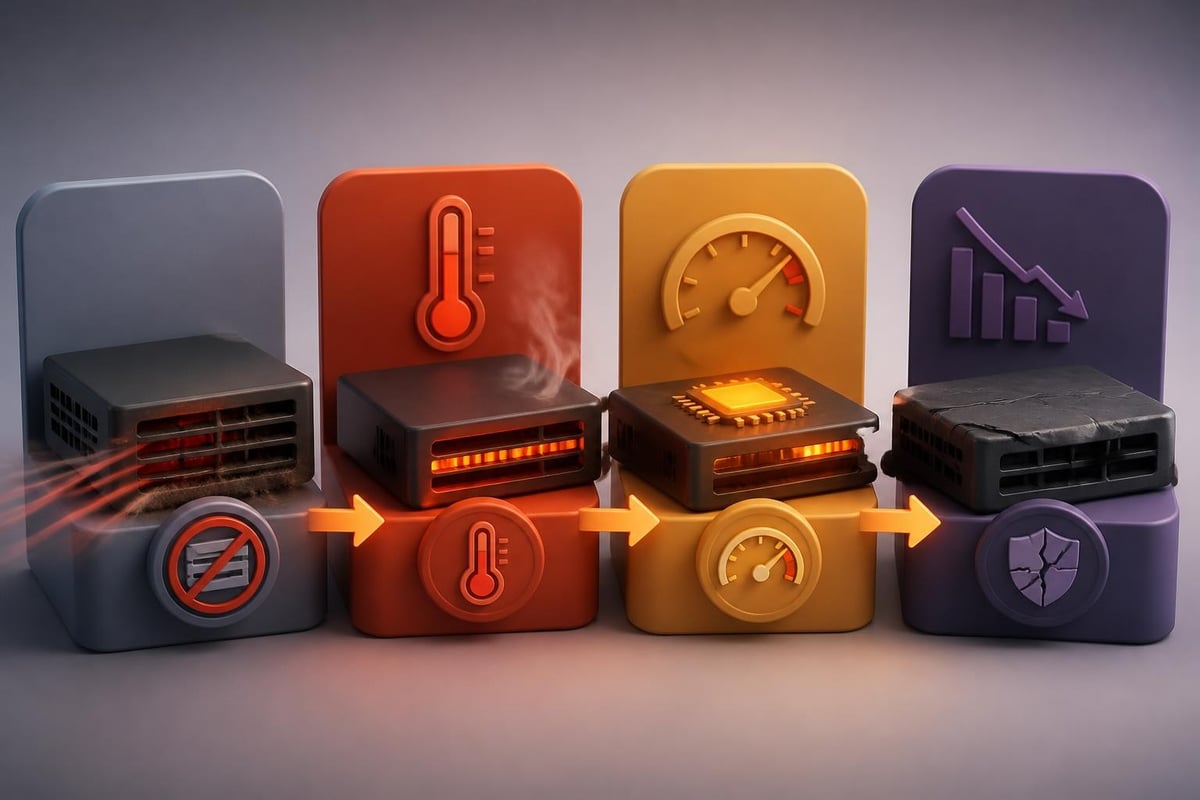
Excessive heat ranks among the most damaging yet preventable issues with laptop performance and longevity. Modern processors generate substantial heat under load, and inadequate cooling accelerates component aging while triggering thermal throttling that reduces productivity.
Cooling System Failures
Laptop cooling systems combine heat pipes, fans, and ventilation channels in compact spaces prone to dust accumulation. Over 12-18 months of typical office use, intake vents collect dust, pet hair, and debris that restrict airflow. The result: processors reach thermal limits during routine tasks like video conferencing or spreadsheet calculations.
Microsoft’s guidance on laptop cooling emphasizes environmental factors and maintenance practices that prevent overheating. Businesses should schedule regular cleaning for employee laptops, particularly in dusty environments or offices with poor air filtration.
Thermal throttling indicators:
- Fan running constantly at maximum speed
- Hot keyboard deck or bottom panel
- Sudden performance drops during demanding tasks
- Unexpected shutdowns without warning
Thermal paste between processors and heat sinks degrades over time, losing effectiveness after 2-3 years. This invisible issue creates a thermal barrier that prevents efficient heat transfer, forcing cooling fans to work harder while components run hotter.
Environmental Factors
Ambient temperature significantly impacts laptop thermals. Devices used in tropical climates like the Philippines face additional stress from high humidity and temperatures. Operating a laptop in 35°C ambient conditions while parked in direct sunlight can push internal temperatures beyond safe thresholds even with clean cooling systems.
Workspace setup contributes to thermal problems. Laptops used on soft surfaces like beds or couches block bottom ventilation vents, while enclosed spaces trap heat. Businesses should provide employees with proper laptop stands or docking stations that maintain adequate airflow.
Software and Operating System Problems
Not all issues with laptop functionality stem from hardware. Software conflicts, corrupted system files, and malware infections create symptoms that mimic hardware failures but require entirely different remediation approaches.
Operating System Corruption
Windows and macOS installations degrade over time through incomplete updates, registry corruption, and driver conflicts. Systems that boot slowly, display frequent error messages, or crash during routine operations often suffer from software-level problems rather than component failures.
Boot issues frustrate users and IT staff alike. Missing boot files, corrupted system partitions, or failed updates can prevent laptops from reaching the login screen. These problems typically require recovery mode intervention, system restore operations, or complete OS reinstallation.
Software troubleshooting priority:
- Check for pending system updates and install them
- Run built-in diagnostic tools (Windows Memory Diagnostic, Disk Check)
- Boot into safe mode to isolate driver conflicts
- Scan for malware using enterprise security tools
- Attempt system restore to known-good configuration
- Backup data and perform clean OS installation
Driver Conflicts and Compatibility
Device drivers bridge hardware and operating system communication. Outdated, corrupted, or incompatible drivers cause issues ranging from non-functional trackpads to complete system instability. Graphics driver problems particularly affect productivity, preventing external monitors from working correctly or causing display artifacts during presentations.
Automated Windows updates occasionally install generic drivers that lack manufacturer-specific optimizations, degrading performance or disabling features. Businesses should maintain tested driver versions and deploy them through centralized management tools rather than relying on automatic updates for critical systems.
Malware and Security Threats
Malicious software represents a growing category of issues with laptop security and performance. Ransomware, cryptominers, and spyware consume system resources, compromise data, and create backdoors for additional attacks. NIST’s guidance on portable storage media highlights how USB drives and external storage introduce cybersecurity risks to laptop environments.
Performance degradation from malware appears gradually: browsers open unwanted tabs, background processes consume CPU cycles, and network bandwidth disappears to command-and-control communications. Unlike legitimate software slowdowns, malware-induced problems persist across reboots and resist conventional troubleshooting.
Display and Graphics Problems
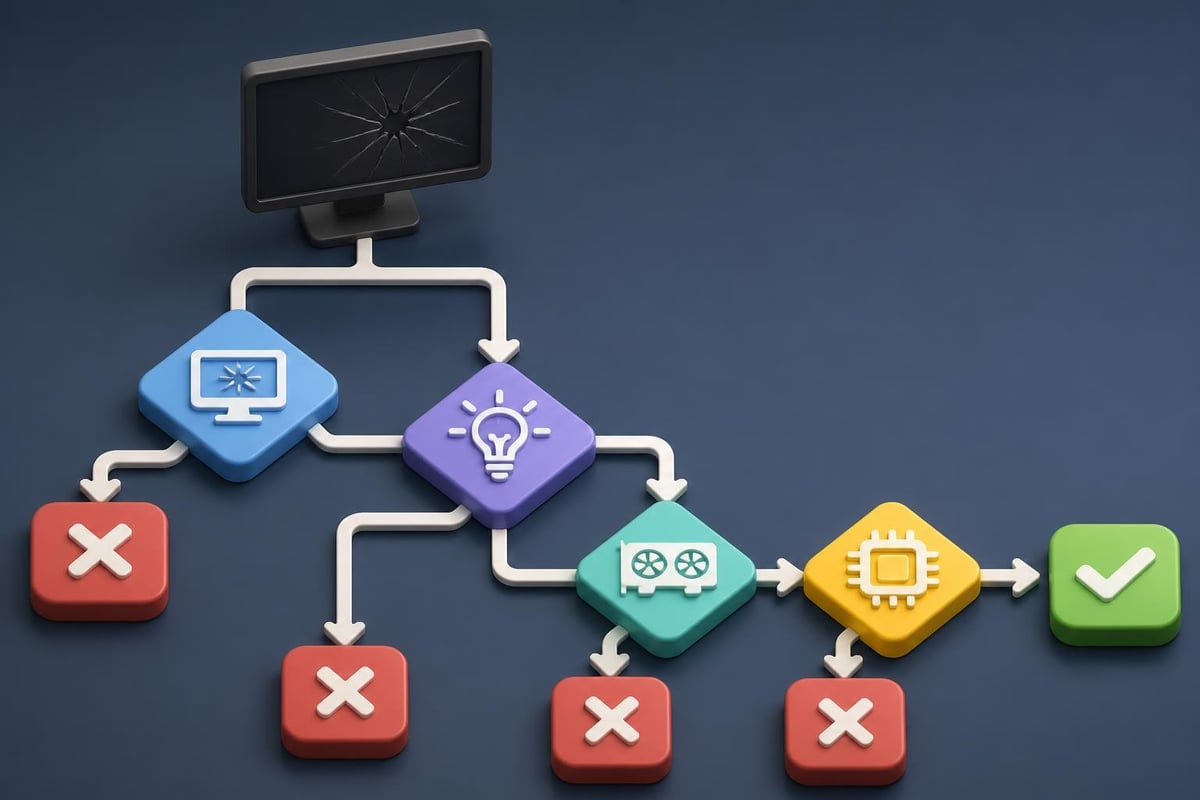
Screen issues rank among the most immediately visible problems affecting laptop usability. From cracked panels to backlight failures, display problems often require professional repair or complete replacement.
Physical Screen Damage
LCD and OLED laptop screens are fragile despite protective glass layers. Pressure on closed lids, impacts during transport, and manufacturing defects create dead pixels, cracks, and vertical lines that render portions of the display unusable. Even minor pressure points can spread into larger cracks over time.
Backlight failures present differently: screens appear extremely dim but still show faint images when viewed under direct light. This problem affects older laptops as LED backlights reach end-of-life or inverter circuits fail. External monitors provide temporary workarounds, but permanent solutions require panel replacement.
Graphics Processing Issues
Dedicated graphics cards in high-performance laptops face thermal stress and driver complications. Graphics processing unit failures manifest as:
- Artifacts, colored squares, or screen tearing during 3D applications
- System crashes when launching graphics-intensive programs
- Automatic switching failures between integrated and dedicated graphics
- Complete loss of video output
Integrated graphics, while more reliable, still suffer from driver conflicts and compatibility problems with specific software versions. Businesses deploying laptops for CAD, video editing, or data visualization must carefully match graphics capabilities to software requirements.
| Display Issue | Diagnostic Test | Repair Complexity |
|---|---|---|
| Cracked screen | Visual inspection | Medium (replace panel) |
| Backlight failure | Flashlight test | Medium to High |
| Dead pixels | Solid color backgrounds | Low to Medium |
| Graphics driver | External monitor test | Low (software) |
| GPU failure | Hardware stress test | High (motherboard level) |
Input Device Malfunctions
Keyboards and trackpads endure constant physical contact, making them susceptible to wear and failure. These issues with laptop input devices directly impact productivity and user satisfaction.
Keyboard Problems
Laptop keyboards face multiple failure modes. Spilled liquids cause immediate shorts and corrosion that spreads beneath keycaps. Individual keys become unresponsive from worn contact domes or debris accumulation. Entire keyboard sections may fail due to ribbon cable damage or connector issues.
Membrane keyboards in budget laptops wear faster than mechanical alternatives, with key switches rated for 5-10 million actuations. Heavy typists reach these limits within 2-3 years on frequently used keys like space bars and enter keys.
Modern ultra-thin laptops use butterfly or scissor-switch mechanisms prone to debris interference. A single grain of sand under a keycap can prevent key travel, requiring compressed air cleaning or professional disassembly. Businesses should provide external keyboards for users experiencing input problems to maintain productivity while arranging repairs.
Trackpad and Pointing Device Issues
Trackpads fail through worn-out click mechanisms, damaged palm rejection circuits, or corrupted drivers. Users report erratic cursor movement, unresponsive gestures, or complete lack of functionality. Some problems stem from disabled trackpads (often via function key combinations users activate accidentally), while others require hardware replacement.
External interference from moisture, oils, or debris on trackpad surfaces creates phantom touches and scrolling. Regular cleaning with appropriate materials prevents many trackpad issues, but hardware failures necessitate motherboard-level repairs in laptops with integrated trackpads.
Connectivity and Network Issues
Modern business workflows depend on reliable network connectivity. Issues with laptop wireless adapters, Bluetooth modules, and port functionality disrupt communication and collaboration.
Wi-Fi and Wireless Problems
Wireless network cards experience driver conflicts, hardware failures, and interference issues. Symptoms include:
- Intermittent disconnections from stable networks
- Inability to detect available networks
- Extremely slow transfer speeds despite strong signal
- Connection success but no internet access
Driver updates often resolve wireless problems, but antenna cable disconnections inside the laptop require physical repair. The Philippines' dense urban environments create Wi-Fi congestion that compounds hardware-related connectivity issues.
Network security policies can create apparent connectivity problems when devices fail to authenticate correctly. Certificates expire, VPN clients malfunction, and proxy settings prevent internet access despite functional wireless hardware. IT teams must distinguish between hardware failures and configuration problems before pursuing expensive repairs.
Port and Peripheral Connectivity
USB, HDMI, and audio ports suffer mechanical wear from repeated cable insertion. Power delivery through USB-C ports places additional electrical stress on connectors. Failed ports prevent crucial peripherals like external displays, storage devices, and audio equipment from functioning.
Consumer Reports’ laptop reliability data identifies port failures as common complaints, particularly in models subjected to frequent cable connections and disconnections. Businesses can reduce port wear by using docking stations that consolidate connections into a single cable.
Bluetooth connectivity problems often originate from driver issues rather than hardware failures. Paired devices that suddenly stop working, intermittent audio dropouts, or inability to discover new devices typically respond to driver reinstallation or Bluetooth stack resets.
Preventive Maintenance and Best Practices
Proactive maintenance prevents many common issues with laptop systems before they escalate into expensive repairs or data loss events. Businesses that implement structured maintenance programs experience fewer disruptions and extend hardware lifespans.
Regular Cleaning and Physical Care
Dust removal represents the single most effective preventive measure. Quarterly cleaning of ventilation ports using compressed air prevents thermal problems and extends cooling system life. Keyboard cleaning removes debris before it penetrates into switch mechanisms.
Monthly maintenance checklist:
- Clean screen with microfiber cloth and appropriate cleaner
- Inspect power cable and adapter for fraying
- Remove dust from ventilation ports
- Check for software updates
- Verify backup system functionality
- Test battery health metrics
Physical protection through padded cases or sleeves prevents transport damage. Screen protectors guard against scratches, while keyboard covers shield from spills in high-risk environments. These inexpensive accessories prevent costly repairs.
Software Maintenance Protocols
Operating system updates patch vulnerabilities and improve stability, yet businesses must balance security with compatibility. Testing updates on non-critical systems before wide deployment prevents update-induced failures that create new problems.
Disk maintenance tools detect file system errors, defragment traditional hard drives, and optimize SSD performance. Regular scans identify developing storage problems before complete drive failure. Businesses should schedule maintenance during off-hours to minimize user disruption.
Driver management requires deliberate strategy. While automatic updates suit consumer devices, business environments benefit from tested driver packages deployed through management software. This approach prevents the driver conflicts that plague laptops with frequent automatic updates.
Asset Lifecycle Management
Strategic replacement based on asset age and total cost of ownership prevents the cascade of failures common in aging laptops. Reliability data from Consumer Reports shows failure rates accelerate after year three, when batteries degrade, storage approaches end-of-life, and accumulated wear affects multiple components.
Businesses in the Philippines can leverage flexible solutions from providers like REDCHIP IT SOLUTIONS INC. that offer leasing and rent-to-own programs, enabling regular hardware refreshes without large capital expenditures. This approach ensures employees always work with reliable equipment while spreading costs predictably.
| Laptop Age | Expected Issues | Recommended Action |
|---|---|---|
| 0-1 years | Manufacturing defects, warranty repairs | Monitor, use warranty |
| 2-3 years | Battery degradation, minor wear | Battery replacement, cleaning |
| 3-4 years | Multiple component issues | Evaluate replacement vs. repair cost |
| 4+ years | Frequent failures, obsolescence | Plan replacement |
Professional IT Support and Repair Services
Complex issues with laptop systems often exceed internal IT capabilities or require specialized tools and expertise. Knowing when to engage professional services prevents amateur repair attempts that void warranties or cause additional damage.
When to Seek Professional Help
Motherboard-level repairs, screen replacements, and data recovery from failed drives demand specialized equipment and training. Attempting these repairs without proper tools risks permanent damage and data loss. Professional services provide warranty-backed repairs and often complete work faster than internal teams managing multiple responsibilities.
Businesses should establish relationships with IT service providers before emergencies occur. Providers like REDCHIP IT SOLUTIONS INC. offer comprehensive support including diagnostics, repairs, and consultancy that keeps operations running smoothly.
Professional repair indicators:
- Liquid spill damage requiring motherboard cleaning
- Screen replacement needs
- Data recovery from non-responsive drives
- Warranty repairs requiring authorized service
- Recurring problems despite troubleshooting attempts
Balancing Repair Costs and Replacement
Economic analysis should guide repair-versus-replace decisions. Repairs exceeding 50% of replacement cost rarely make financial sense, particularly for laptops over three years old. Factor in the value of employee time lost to recurring problems when evaluating total costs.
Enterprise-grade service contracts provide predictable costs through annual fees covering repairs and preventive maintenance. These agreements suit organizations managing large laptop fleets where individual repair decisions become administratively burdensome. However, smaller businesses may benefit from pay-as-needed repair services combined with strategic hardware refresh cycles.
Modern business-grade laptops and accessories designed for professional environments offer superior reliability and serviceability compared to consumer models, reducing total cost of ownership despite higher initial prices.
Understanding and addressing common issues with laptop computers requires both reactive troubleshooting skills and proactive maintenance strategies. By implementing regular cleaning schedules, monitoring system health metrics, and knowing when professional intervention is necessary, businesses can minimize downtime and extend hardware investments. When laptop problems exceed internal capabilities or threaten business continuity, REDCHIP IT SOLUTIONS INC. provides comprehensive IT solutions including expert repairs, flexible leasing options, and professional consultancy designed to keep Philippine businesses productive and protected.